Thursday demo. To bring the database up locally, run
8 pt
Paste where you type.
yabbistir 0.5.0 · macOS 26 · Apple silicon
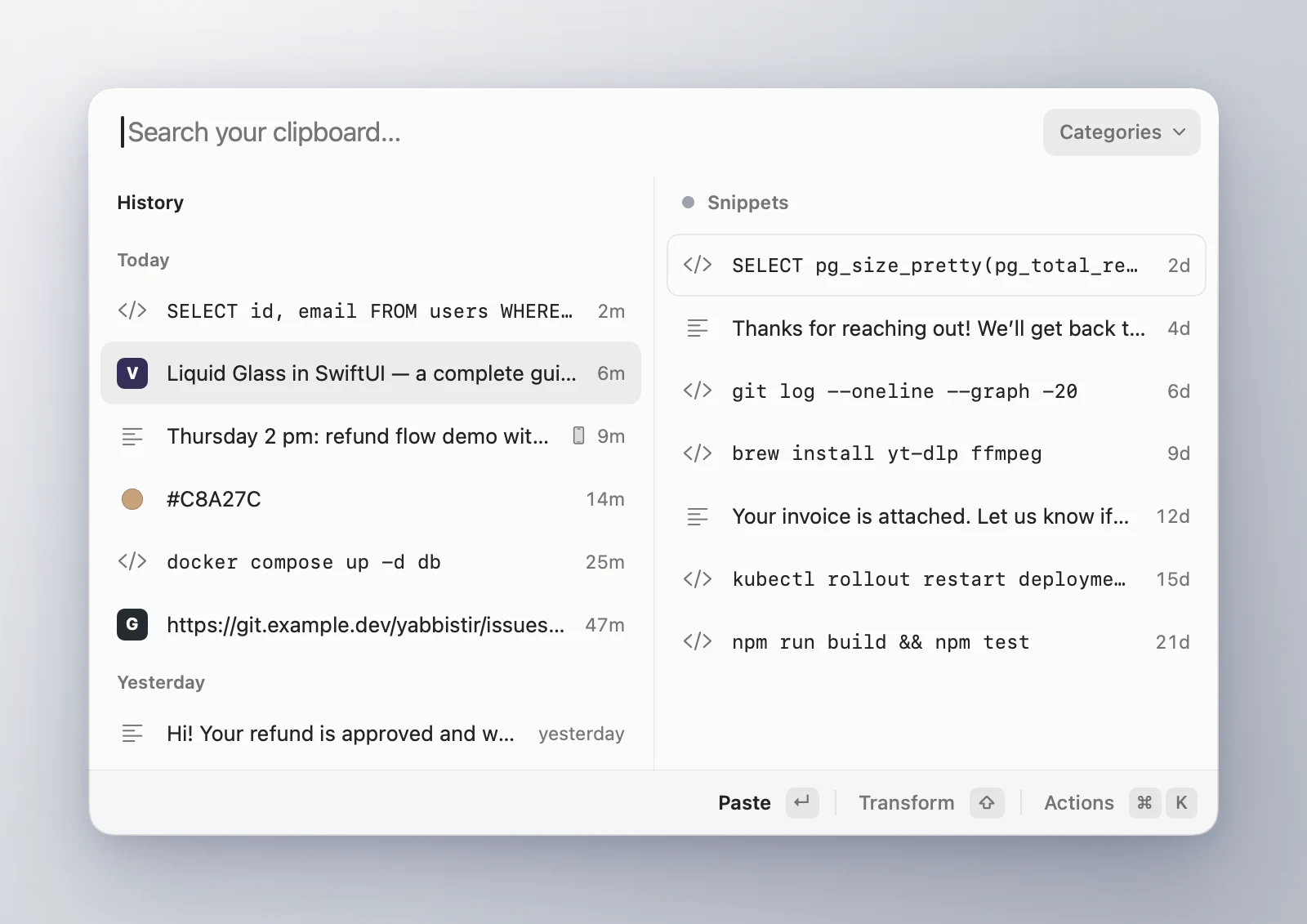
yabbistir is a clipboard history for macOS that opens right under your text caret. Type to search, press ↵ to paste. Extensions teach it what your copies are and what to do with them.
SELECT id, email FROM users WHERE created_at > now() - interval '1 day'2m
VLiquid Glass in SwiftUI — a complete guide6m
Thursday 2 pm: refund flow demo with Elif and Mert9m
#C8A27C14m
docker compose up -d db25m
Ghttps://git.example.dev/yabbistir/issues/4247m
Yesterday
Hi! Your refund is approved and will reach you in 3–5 days.yesterday
Paste↵Transform⇧Actions⌘K
Try it: type to search · ↑ ↓ · ↵ pastes into the draft
Forty seconds, start to finish.
The panel under the caret, the Stack, transforms on ⇧ and categories as columns, in the order you would meet them.
The app in 40 seconds · no sound
0:40 · no sound
Made for the keyboard, kept out of the way.
A panel under your caret
It opens 8 points below the text caret, or under the pointer in apps that don’t report one. Type to search, ↑ ↓ to move, ↵ to paste, ⌘1–⌘9 for the first nine. ⇧↵ gives the item’s second choice, such as plain text for rich text.
⇧⌘V↑↓↵⌘1–⌘9
Stack
Copy several things in a row with ⇧⌘C, then paste them in order: each ⌘V brings up the next one. Drag to reorder. When a new copy lands at the end, ⌥1 moves it to the top or ⌥2 to second place, and the rest of the queue stays as it was.
1git checkout -b fix/refund-emailNext ⌘V
2npm test -- refund
3git push -u origin HEAD
⇧⌘C⌘V⌥1⌥2
Categories as columns
⌘P adds an item to a category, and a category can open as its own column next to History. Items in a category stay until you remove them.
⌘P→←
Transforms
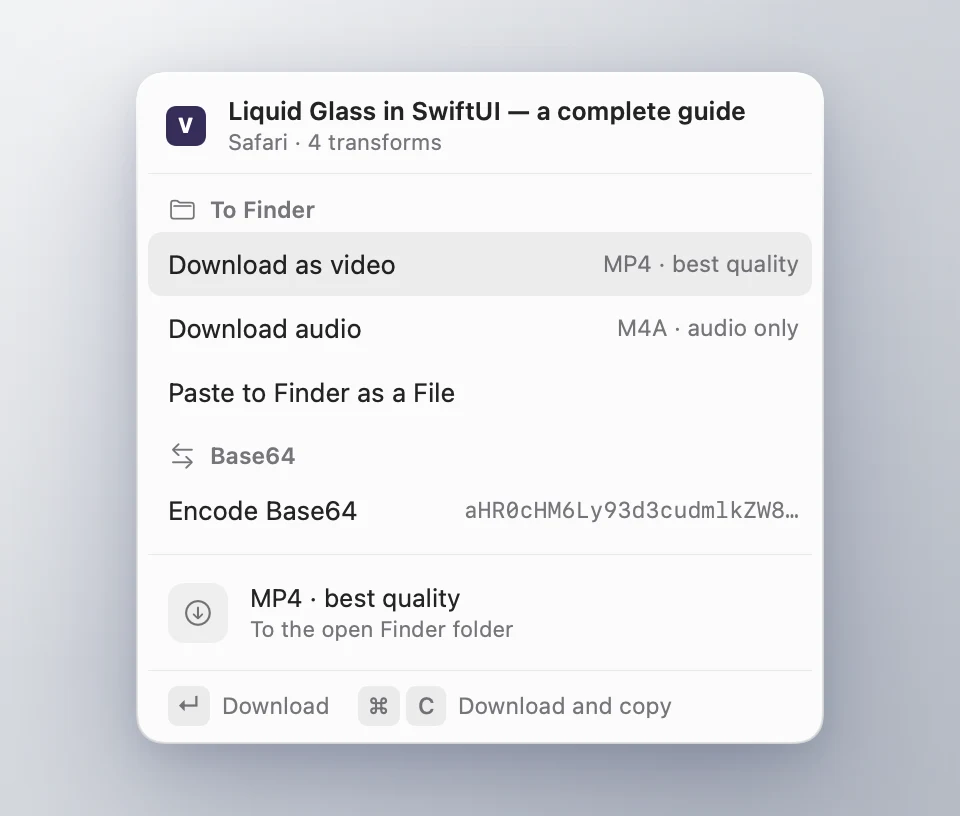
Tap ⇧ on an item to see what can be done with it: encode Base64, turn a color into RGB, HSL, OKLCH or a SwiftUI Color, convert an image or read the text in it. ⌘K lists every action. ↵ always pastes the item as it is.
⇧⌘K
Jobs in the menu bar
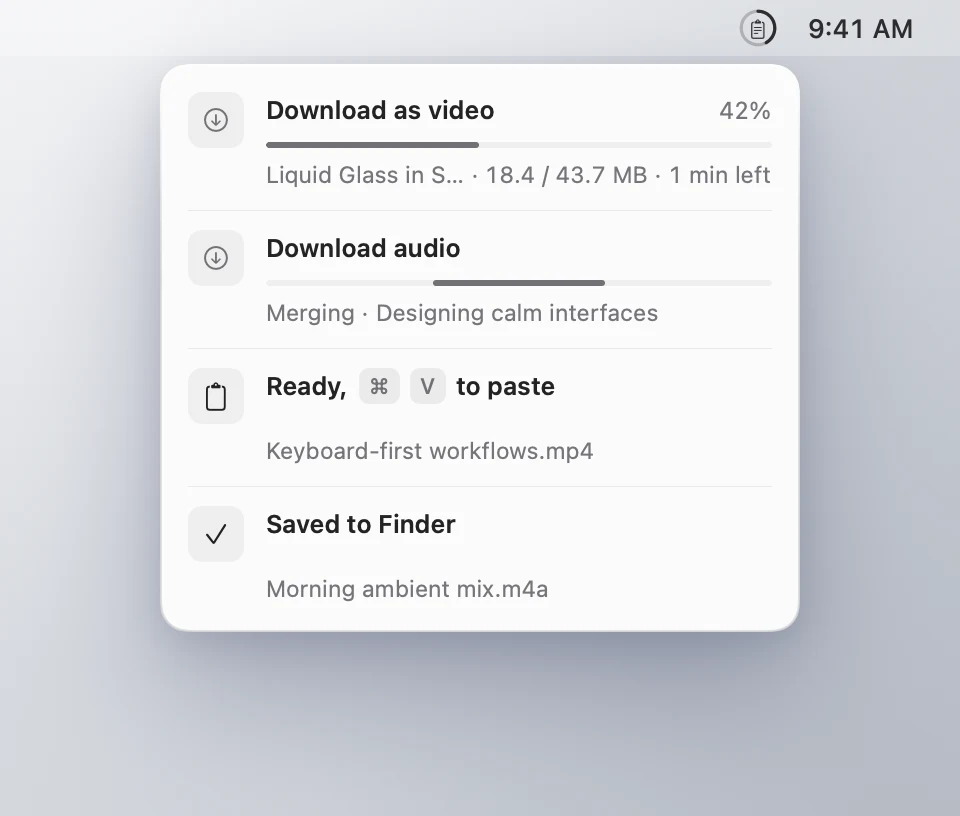
Long actions, such as downloading a video, run as jobs on a small card under the menu bar icon, and the icon shows their progress as a ring.
up to 3 at once
It grows.
Extensions are small JavaScript packages that recognize what you copy, clean it before it’s saved, transform it, act on it or fill a column of their own. yabbistir draws every piece of their interface, so they look and work like the rest of the app.
Five extensions in 60 seconds1:00 · narrated · captions in English and Turkish
Each one says what it wants to do before you install it.
Reaching websites, running a program, reading your history or seeing what you copy: nothing happens until you allow it. The store’s catalog is signed, and yabbistir checks every package before installing it.
An extension is TypeScript bundled into one file. Start from a template in the store repository, run it live in yabbistir while you edit, then open a pull request. yabbistir-extensions
Nothing leaves your Mac unless you ask.
No telemetry
No analytics, no background network. yabbistir goes online only when you ask: Check for Updates… asks GitHub for the latest version, and the Store tab reads the store’s signed list when you open it.
Check for Updates… · Store → Refresh
Passwords stay out
Copies that apps mark as concealed or transient, the way password managers do, are never saved, and neither is anything copied from Keychain Access or Passwords.
org.nspasteboard.ConcealedType · TransientType
Your history is local
It stays on your Mac. Copies from your iPhone arrive through Universal Clipboard and are kept there too. History is kept for a year from the last time you used an item.
Open the DMG and drag yabbistir to Applications. It’s signed with a Developer ID and notarized by Apple.
yabbistir-0.5.0.dmg · November 6, 2026
With Homebrew
Terminal
brew tap berkaygkc/tapbrew trust --cask berkaygkc/tap/yabbistirbrew install --cask berkaygkc/tap/yabbistir
Homebrew 7 and later ask you to trust a cask from another tap first.
berkaygkc/tap
Requires macOS 26 or later on Apple silicon.
A short first-run window walks you through the start: your language, bringing over another clipboard manager’s library, the shortcut, and the Accessibility permission yabbistir needs to paste for you.
Questions
Why macOS 26 only?
It’s built on macOS 26: the panel uses Liquid Glass, and extensions can use Apple’s on-device model, which needs macOS 26 and Apple silicon. It’s one person’s project, and one platform done well beats two done halfway.
Why isn’t it on the App Store?
The Mac App Store requires the app sandbox, and yabbistir doesn’t run in one: extensions you allow can run command-line programs you’ve installed. It’s signed with a Developer ID and notarized by Apple instead, and it’s free, so GitHub releases and Homebrew are enough.
What can an extension do? Isn’t that risky?
Before an extension is installed, yabbistir shows what it wants to do: reach websites (and which ones), run command-line programs (and which ones), read your history or see what you copy. Nothing happens until you allow it, and an update that asks for more asks again. Extensions run in a separate helper process, and yabbistir draws their interface.
Is it really free?
Yes. No account, no subscription, no paid tier. The code is MIT-licensed on GitHub.